Walkthrough
One grant, followed all the way round
A demonstration we built with Point North in mind. The foundation is real; the donors, groups, staff and figures are invented. Send an update as a community group, then follow one that has already been approved from the review queue to a donor's feed, the public fund page and the trustees' board pack, signing into each seat as you go.
About ten minutes, in this order
Each seat opens in the same tab. Use your browser's back button, or the walkthrough link in the footer, to come back and take the next one.
- 1. The group: Coast Road Community Kitchen
Five minutes on a phone, in their own words
Coast Road Community Kitchen serves warm meals on a grant from the Point North Community Fund. You play the group: when an update is due, the organiser gets a personal link by text or email. There is no account, no password and no form to download. Harbour Youth Project's update, which you will meet in the next seats, went round the same loop earlier.
What to notice. The draft saves as they go, the three questions are in plain words, and the group decides who may see it before anything is sent.
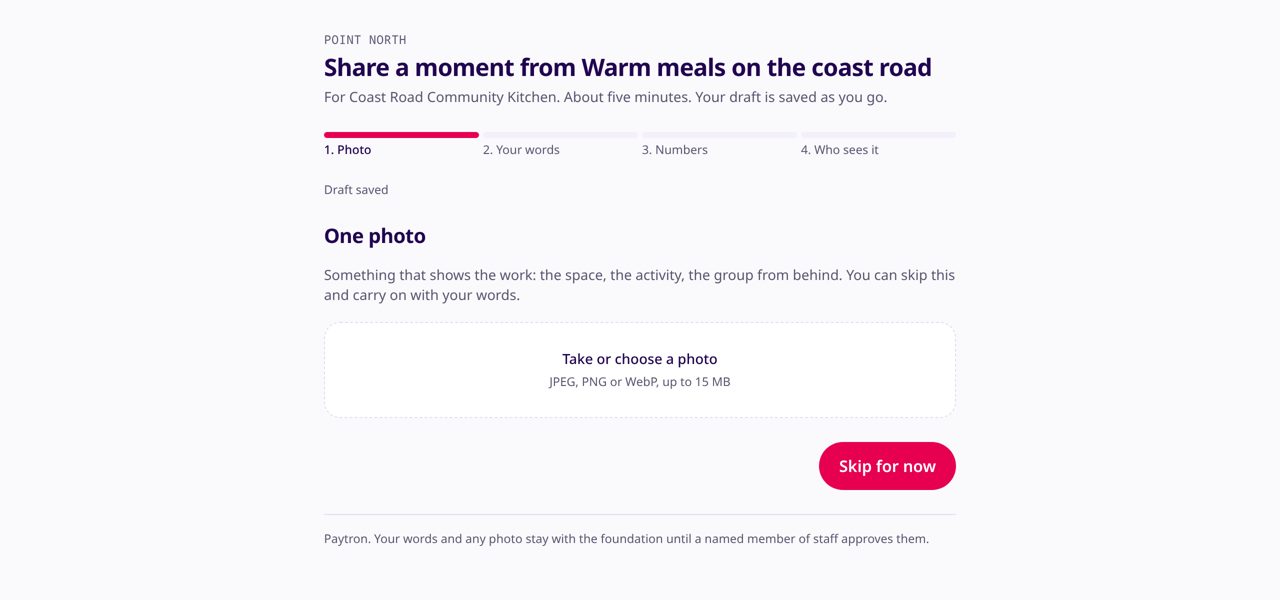
What the youth worker sees: four short steps, a saved draft, and the promise that nothing leaves the foundation until a person approves it. - Open the link on a phone. It works on that one device and expires after seven days.
- Take a photo or record a short video, choose one from the phone, or skip it and just send words.
- Answer three questions in plain words, or dictate them and let Paytron tidy the transcript.
- Give the numbers they counted with plus and minus buttons, in the labels and steps the foundation set.
- Choose who may see it: staff only, the fund's holders, the donors who funded it, or the public.
- 2. The grants officer: Sam Okafor
A review that takes minutes, not evenings
Sam sees the group's words beside a suggested headline and summary, with anything flagged for safeguarding held at the top. Nothing reaches a donor until Sam, or a colleague, approves it and puts a name to it.
What to notice. Words the AI added that are not in the group's answers are highlighted, so Sam checks those rather than reading past them. A held update cannot publish on its own.
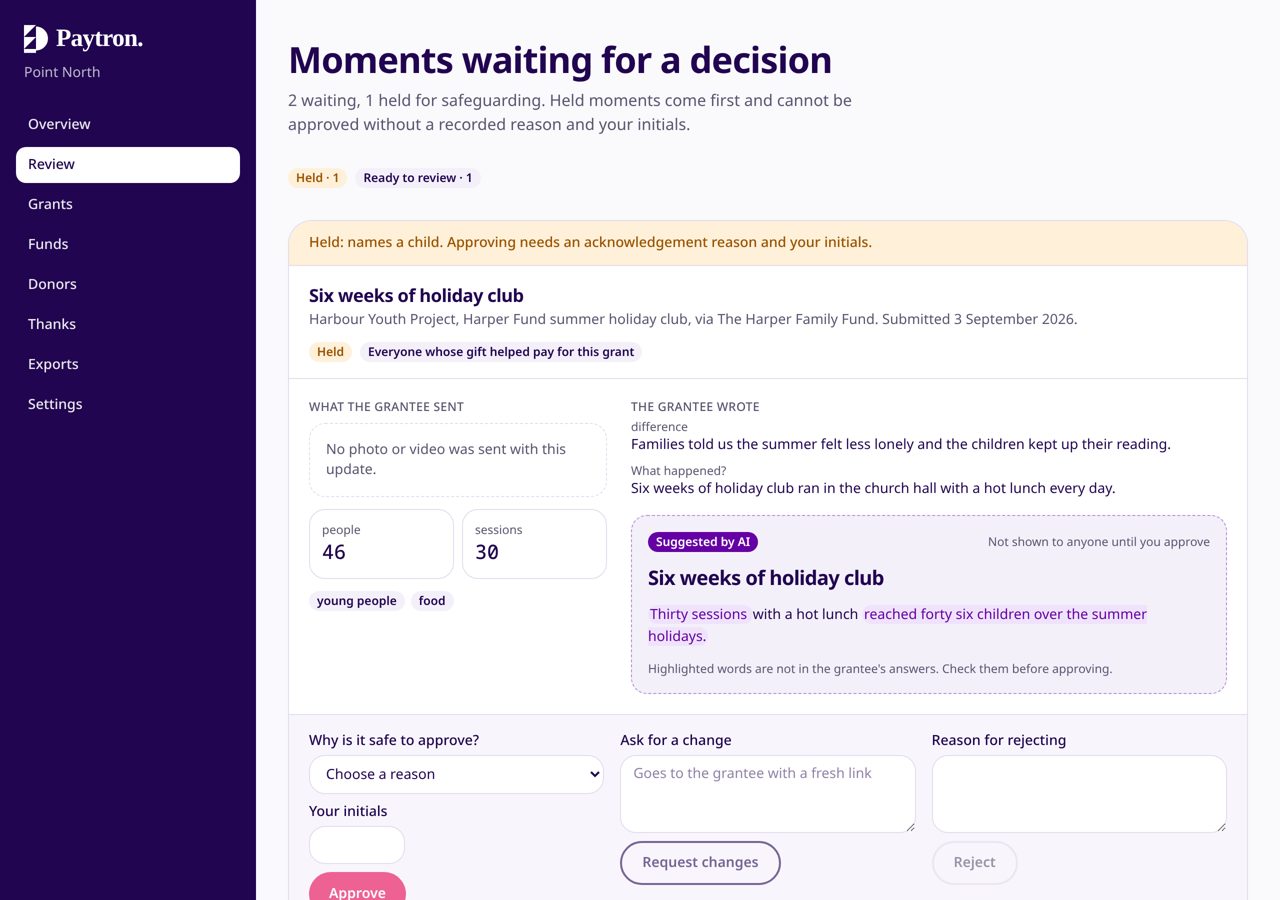
A held update at the top. The suggested summary sits beside the group's own words, with anything the AI added highlighted for checking. - Open Review. Harbour Youth Project's paint night is held at the top: its photo stays blurred until Sam chooses to look, and approving it needs a reason.
- Open Coast Road Community Kitchen's update: the group's words sit beside what donors will see, and the approve button says how many donors it reaches.
- Approve it, ask the group to change it, or reject it, with an optional note.
- Open Grants and the Silent tab: three Upper Dale groups have not reported. Send one a fresh link, or send to every silent group at once.
- 3. The donor: Alice Harper
Her share, that grant, those words
Alice gave to the Point North Community Fund and holds the Harper Family Fund. Her feed shows only the grants her gifts reached, with the exact pounds and percentage, and the approved update from Harbour Youth Project appears there with no newsletter in between.
What to notice. The share is worked out to the penny and explained in plain English. She can say thank you (Erin reads it first) and give again with Gift Aid in two taps.
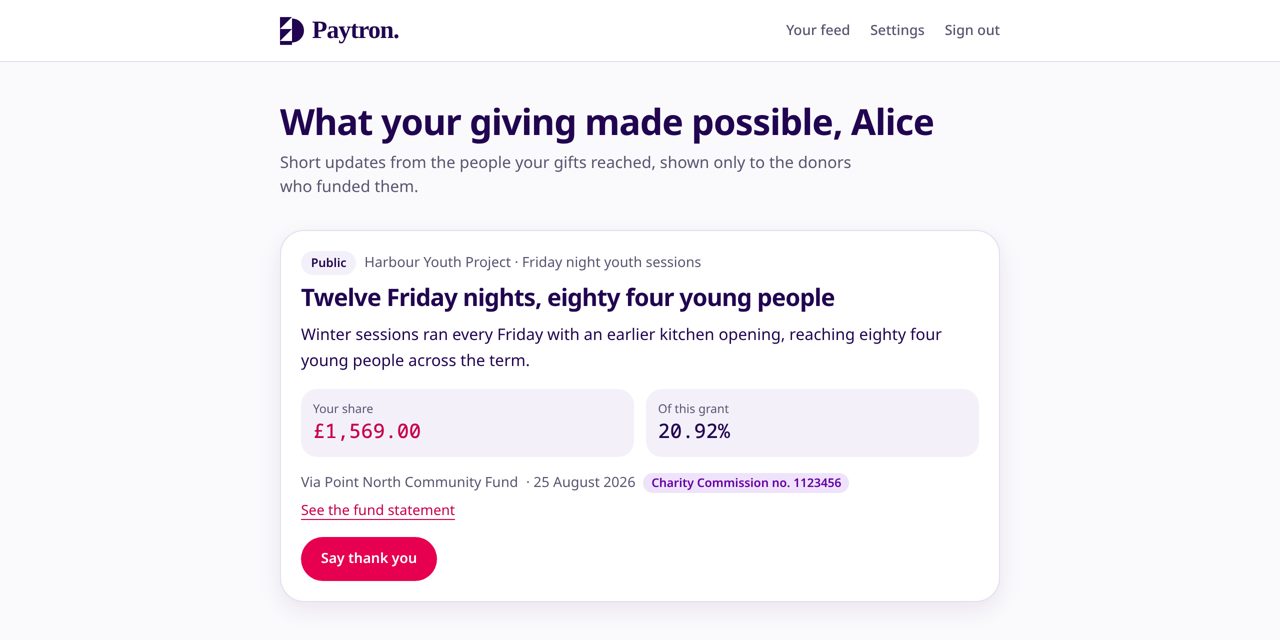
Alice's feed: the grant, the group's words, and her share of it worked out to the penny. - Read the feed: the photo comes first, with who it is shared with, then her share of the grant.
- Open How we worked this out to read the ledger's own sentence for her share.
- Open Funds and a fund statement: the newest periods are one tap away, with what each grant paid for.
- Say thank you to the group (Erin reads it first), or give again: her Gift Aid declaration already covers it.
- In settings, switch to a weekly round-up, download her data or close the account.
- 4. The philanthropy team: Erin Doyle
Every donor stewarded, not just the largest ten
Erin looks after donors and funds. The routing is automatic, so her time goes on the relationships: reading the thank you messages donors send, keeping fund and donor records tidy and spotting who has gone quiet.
What to notice. The donor page shows the signals behind warmth, not just a score, and the thank-you queue is a check rather than a task.
- Open Donors, then Alice Harper: why she is warm, where her money went, and past conversations.
- Log a conversation with a short note, which only staff can read.
- Open Thank-yous: Alice's message has been checked for contact details and is ready to pass on.
- 5. The finance team: Colin Pratt
Figures that reconcile, exports that just work
Colin owns the figures that appear on fund statements and the exports auditors and HMRC ask for. Nothing is published until he signs a period, and every grant payment's shares sum to the payment to the penny.
What to notice. The 360Giving file validates against the standard, the Gift Aid schedule is in HMRC's layout, and the board pack narrative is a draft a named person edits before it leaves.
- Open Packs and exports and pick a quarter.
- Freeze last month's statements, so the figures donors see stop moving.
- Download the 360Giving file and the Gift Aid claim.
- Generate the quarterly board pack, edit the suggested narrative and approve it.
- 6. The administrator: Nadia Reid
The whole loop on one screen, in your own voice
Nadia runs Point North on Paytron day to day. Today tells her what needs someone now: updates to review, thank-yous waiting, grants gone silent and packs due. Settings put the foundation's own questions, colours and words on everything a donor or group receives.
What to notice. Today lists only what needs someone, oldest first, and the last updates donors received with how many opened them. Every change Nadia makes lands in the audit log.
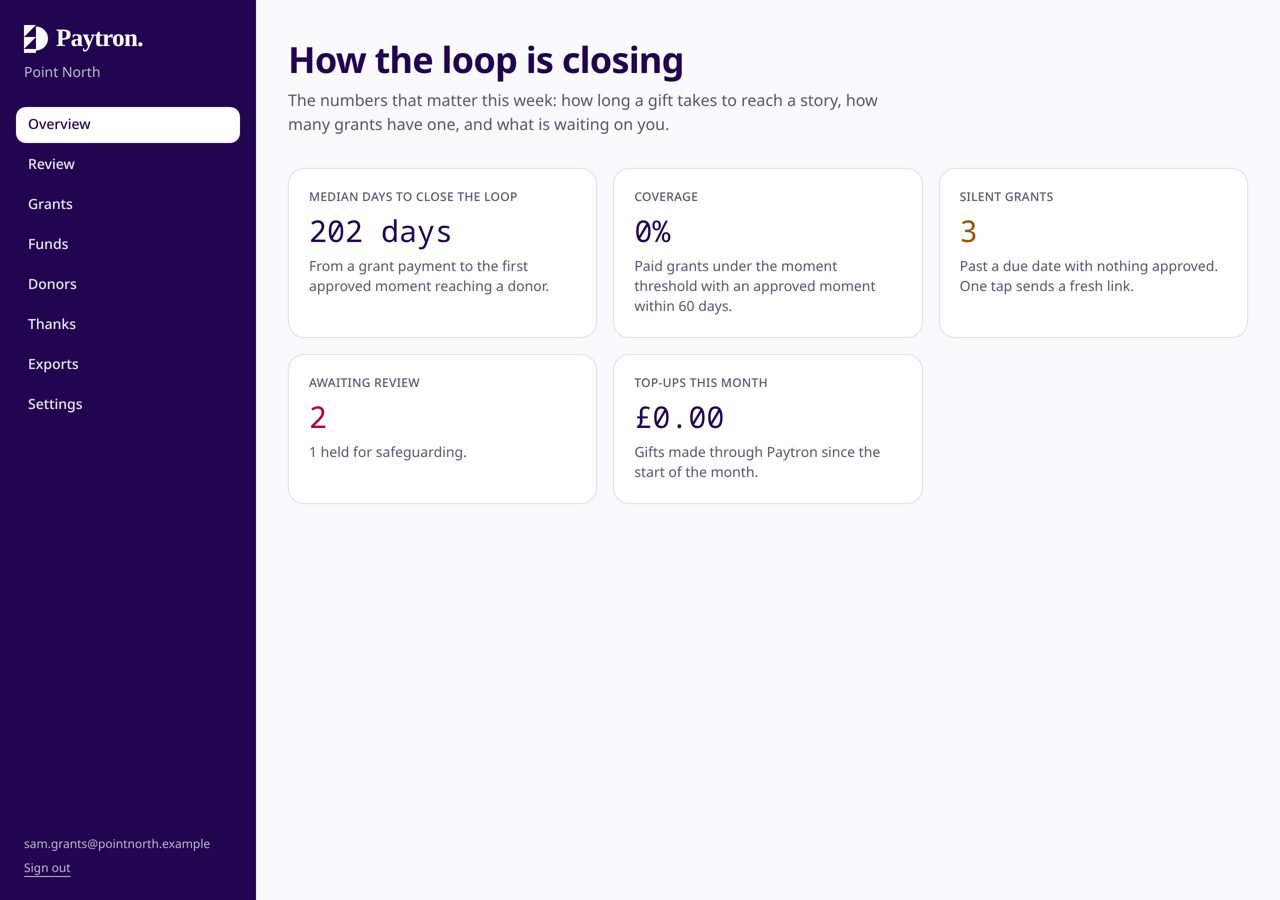
Today: what needs someone now, and how the last updates landed with donors. - Open Today: the held update, the thank-yous waiting and the three silent Upper Dale grants.
- Open Settings: each programme asks its own questions on its own schedule, Brand checks colours as you pick them, and Messages counts texts.
- Invite a colleague, change a role or revoke access under People and roles.
- Check the audit log to see who did what and when.
- 7. The trustee: Tessa Blake
Evidence the foundation does what it promises donors
Tessa can read the overview and the board pack and cannot change anything. What she sees is the case for the foundation in the donors' own terms: money in, grants out, and what happened next, in the groups' words.
What to notice. Everything is read only, so click anywhere.
- Open Today to see what the team is working through.
- Open Packs and exports for the latest board pack.
- 8. The funder: Northbank County Council
A quarterly pack the council did not have to chase
The council pays for the Healthy Communities programme through the foundation. Public money never appears in an individual donor's feed, so until now the council got nothing back from the loop. The funder pack gives it what its money paid for: its share of the quarter's payments to the penny, which grants have reported, the council's own outcome headings, and the groups' updates in their own words.
What to notice. No individual donor appears anywhere in the pack, and an update is in it only if the group chose to share it with its funders. Colin cannot export the pack until he has read the covering note and saved it as agreed. The council never signs in: it receives the PDF.
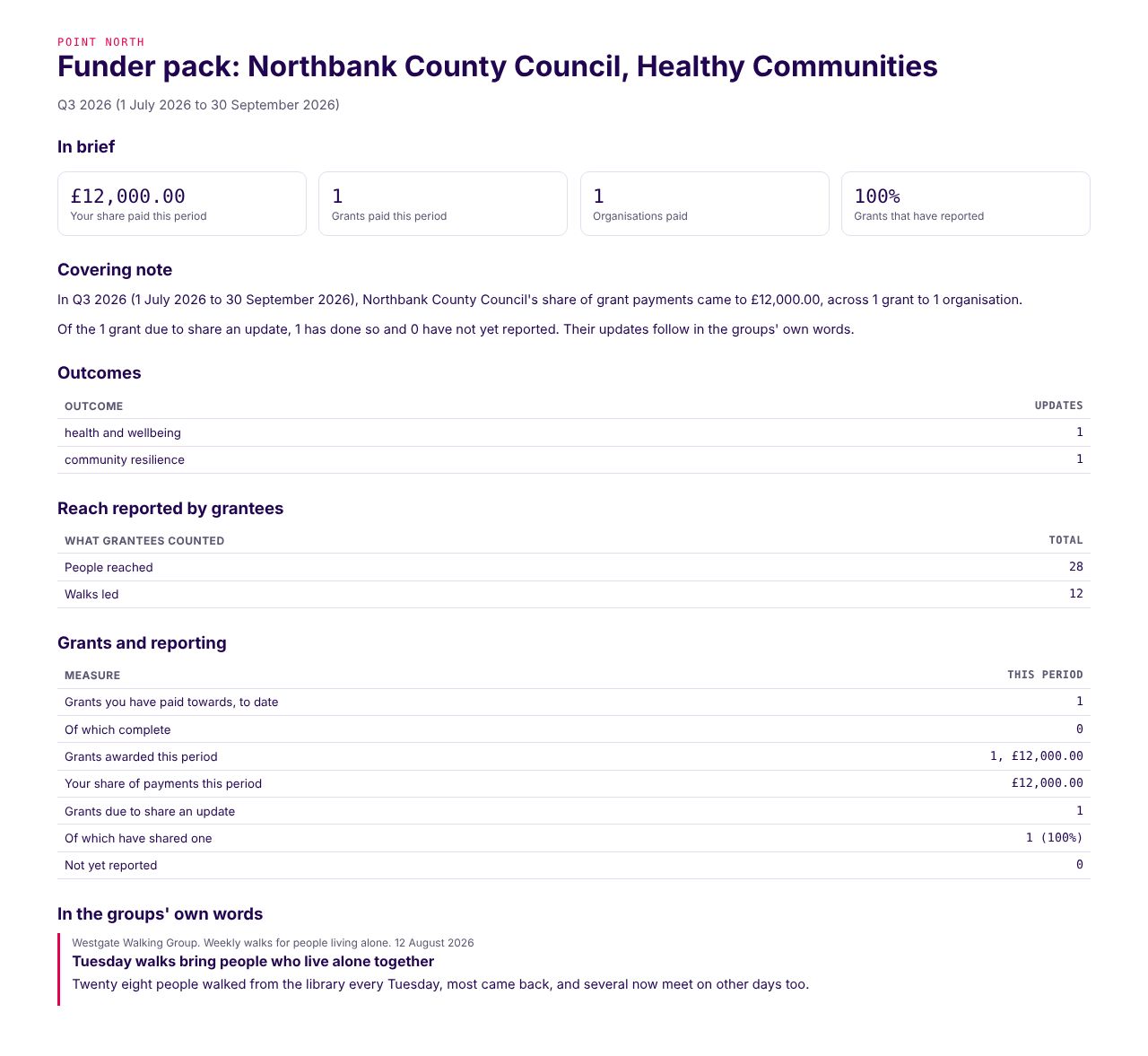
The funder pack: the council's share of the quarter, the programme's outcomes, and the walking group's update in its own words. - Sign in as Colin and open Packs and exports, with Q3 2026 selected.
- Under Funder packs, choose Northbank County Council and the Healthy Communities programme.
- Suggest a covering note, edit it and save it as agreed.
- Open the pack to print it or save it as a PDF.
- 9. The public: the fund page
A living page for every fund, to send to the next donor
Anyone can open the Point North Community Fund page. It shows what the fund is for, the signed-off figures the foundation chose to publish, the updates groups agreed to make public, and a way to give. It can be embedded on the foundation's own website.
What to notice. Harbour Youth Project chose public, so their update is here. The Pantry chose donors only, so theirs is not. The page enforces that, not a person remembering.
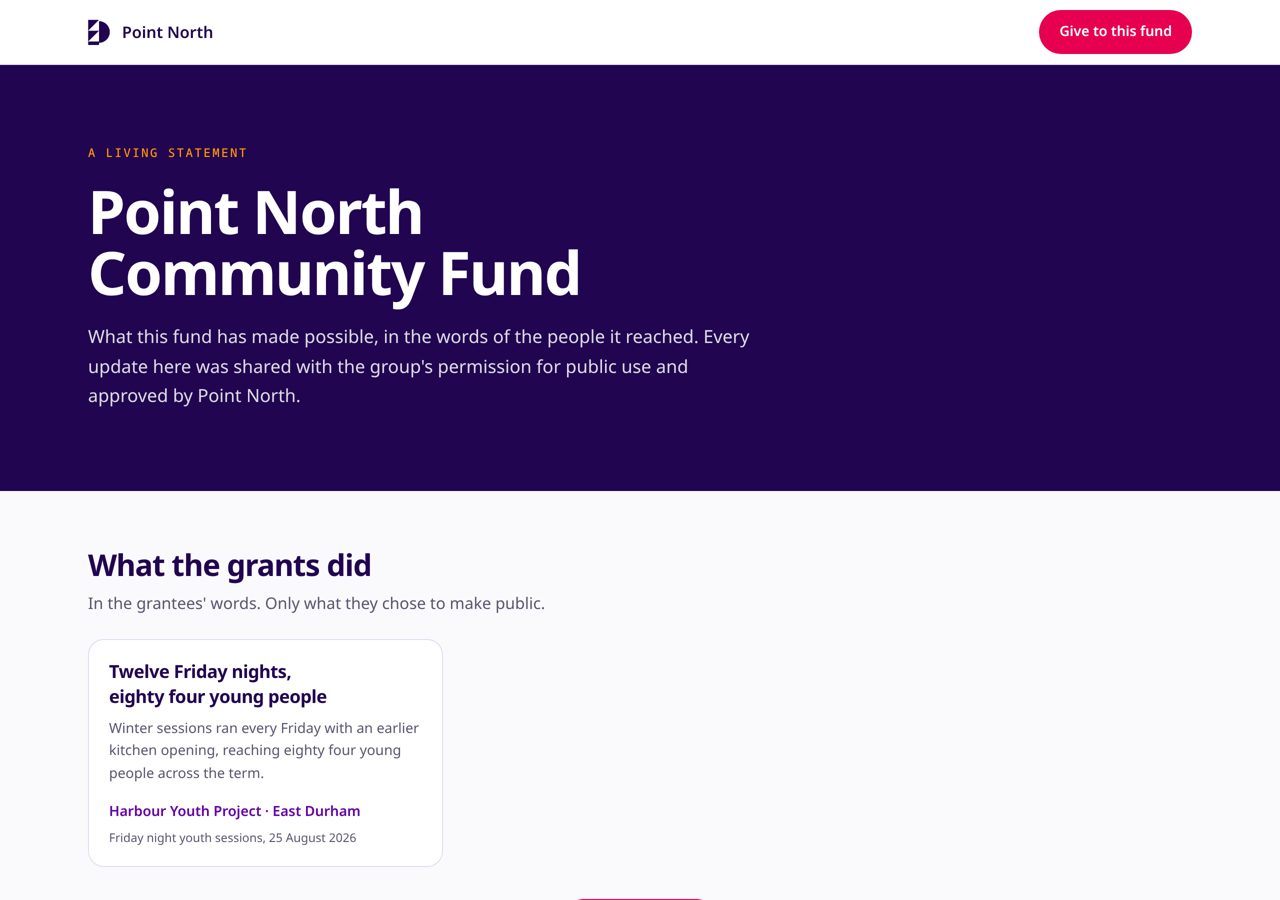
The public fund page. Only updates a group agreed to make public appear here. - Open the public fund page. It leads with a photo staff chose from a public update; in this demonstration the photos are illustrative.
- Compare it with Alice's feed: same grant, different audience, different content.
Now the same thing with your funds
Send us a week of your CSV export and we load it, so the next walkthrough is your funds, your grants and your donors' shares. No migration and nothing to install.
Every donor, group, member of staff, gift and update in this walkthrough is invented. Nothing here describes a real person, a real grant or Point North's real figures.